> For the complete documentation index, see [llms.txt](https://docs.scanner.dev/scanner/llms.txt). Markdown versions of documentation pages are available by appending `.md` to page URLs; this page is available as [Markdown](https://docs.scanner.dev/scanner/using-scanner-complete-feature-reference/administration/role-based-access-control-rbac.md).
# Role-Based Access Control (RBAC)
## Overview
Scanner implements Role-Based Access Control (RBAC) to manage permissions securely and efficiently. RBAC restricts access to system resources based on predefined roles assigned to entities—referred to as **actors**—such as Users, API Keys, and, in the future, any other entity capable of interacting with Scanner. This ensures that actors can only perform actions and access data relevant to their responsibilities, enhancing security, simplifying administration, and supporting scalability as your organization grows.
In Scanner, RBAC is designed to be flexible yet robust, allowing administrators to define roles, assign them to actors, and control access to features like running search queries, managing detection rules, and system configuration.
### Key Concepts
* **Roles**: A role represents a set of permissions that define what an actor can do within Scanner. Examples might include `admin`, `analyst`, `user`.
* **Permissions**: Specific actions or access rights tied to a role.
* **Resources**: The entities that actors may act upon, like Indexes, Detection Rules, and Synced GitHub Repositories.
* **Actors**: Entities assigned to one or more roles. Currently, actors include:
* **Users**: Individuals interacting via the UI.
* **API Keys**: Programmatic access tokens used for automation or integrations.
* **System Actor**: Assigned to Scanner's internal automated systems that perform basic maintenance actions.
### How RBAC Works in Scanner
1. **Role Definition**\
Administrators create roles within Scanner via the Admin Console. Each role is associated with a set of permissions that dictate what actions actors can take. For example, you might have:
* an `analyst` role with `Query` and `Read` permissions on only the `prod` index
* a `rule-editor` role with the `Create Detection Rule` and `Update all Detection Rules` permissions across the entire team
* an `admin` role with the `Admin` permission, granting all other permissions.
2. **Actor Assignment**\
Actors—Users, API Keys, or other entities—are assigned to one or more roles.
3. **Permission Enforcement**\
When an actor interacts with Scanner (e.g., a User edits a Detection Rule or an API Key triggers a query), the RBAC system evaluates their role(s) and associated permissions. An actor is allowed any action that is permitted to any of their roles. For instance:
* A user assigned to both `analyst` and `rule-editor` roles can query production indexes (from `analyst`) AND edit detection rules (from `rule-editor`).
* An API key attempting to query the `_audit` index is denied because none of their roles has the `Query` permission on the `_audit` index.
### Restriction Filters
Restriction filters are a special type of permission that applies only to querying indices. A restriction filter allows restricting access to individual log events inside of indices based on a [query](/scanner/using-scanner-complete-feature-reference/querying-and-analysis/query-syntax.md).
Any number of restriction filters may be applied to a role; when running a query, an actor will be shown only log events that match at least one restriction filter across all of their roles. The absence of any restriction filters on a role is equivalent to that role having the restriction filter of `*`, i.e. no restrictions.
E.g.:
* If the `tester` role has the restriction filters `@index=dev type="Dev Test"` and `@index=test`, then a user with only that role will be able to see:
* log events from the `dev` index whose `type` column is exactly the string `"Dev Test"`
* all log events from the `test` index
* If the `analyst` role has the restriction filter `@index=prod`, a user with both `tester` and `analyst` roles will be able to see:
* log events from the `dev` index whose `type` column is exactly the string `"Dev Test"`
* all log events from the `test` index
* all log events from the `prod` index
* If the `superuser` role has no restriction filters, then a user with all three of `tester`, `analyst`, and `superuser` roles will be able to see:
* all log events
Note that, regardless of the content of restriction filters, the `Query` permission is still required to perform queries.
### Default Roles
Scanner provides the following built-in roles to get you started:
| Role | Description | Permissions |
| ------- | ------------------------- | ---------------------------------------------------------------------- |
| `admin` | Full control over Scanner | All actions (e.g., manage users, configure system, run search queries) |
| `user` | Read-only access | Cannot view data by default, give permission to specific indexes. |
These may be customized or supplemented with custom roles as needed. Note that built-in roles cannot be deleted, and the `admin` role cannot have its permissions modified, in order to prevent accidental lockout from the account.
### Default Permissions
When a new resource is created, all roles of the creating actor that granted permission to create that resource are given all permissions on the new resource, unless otherwise specified.
E.g.:
* If the `rule-editor` role has the `Create Detection Rule` permission, and a user with that role creates a detection rule, then the `rule-editor` role will have all permissions (`Read`,`Update`, `Delete`, `Manage`, etc) on the new detection rule, and no other roles will have any permissions on the new detection rule. (Note that e.g. `Read All Detection Rules` will still retroactively apply to this new detection rule, so it's possible other roles can still access it.)
* If the `superuser` role also has the `Create Detection Rule` permission, and a user with both of the `rule-editor` and `superuser` roles creates a detection rule, then both the `rule-editor` and `superuser` roles will have all permissions on the new detection rule, and no other roles will have any permissions on the new detection rule.
* If the `tester` role does not have the `Create Detection Rule` permission, and a user with both of the `rule-editor` and `tester` roles creates a detection rule, then the `rule-editor` role will have all permissions on the new detection rule, but the `tester` role will have no permissions on the new detection rule.
Additionally, in the case of resources that are also actors (e.g. API Keys), the newly-created actor has ***all*** roles of the actor that created it, unless otherwise specified. E.g. when a user creates an API key, that API key starts with all roles that the user had at the time of creation. ***This means that API keys created by\*\*\*\* ****`admin`****s will also be**** ****`admin`\*\*\*\*s, unless its roles are modified!***
### Managing RBAC in Scanner
#### Admin Interface
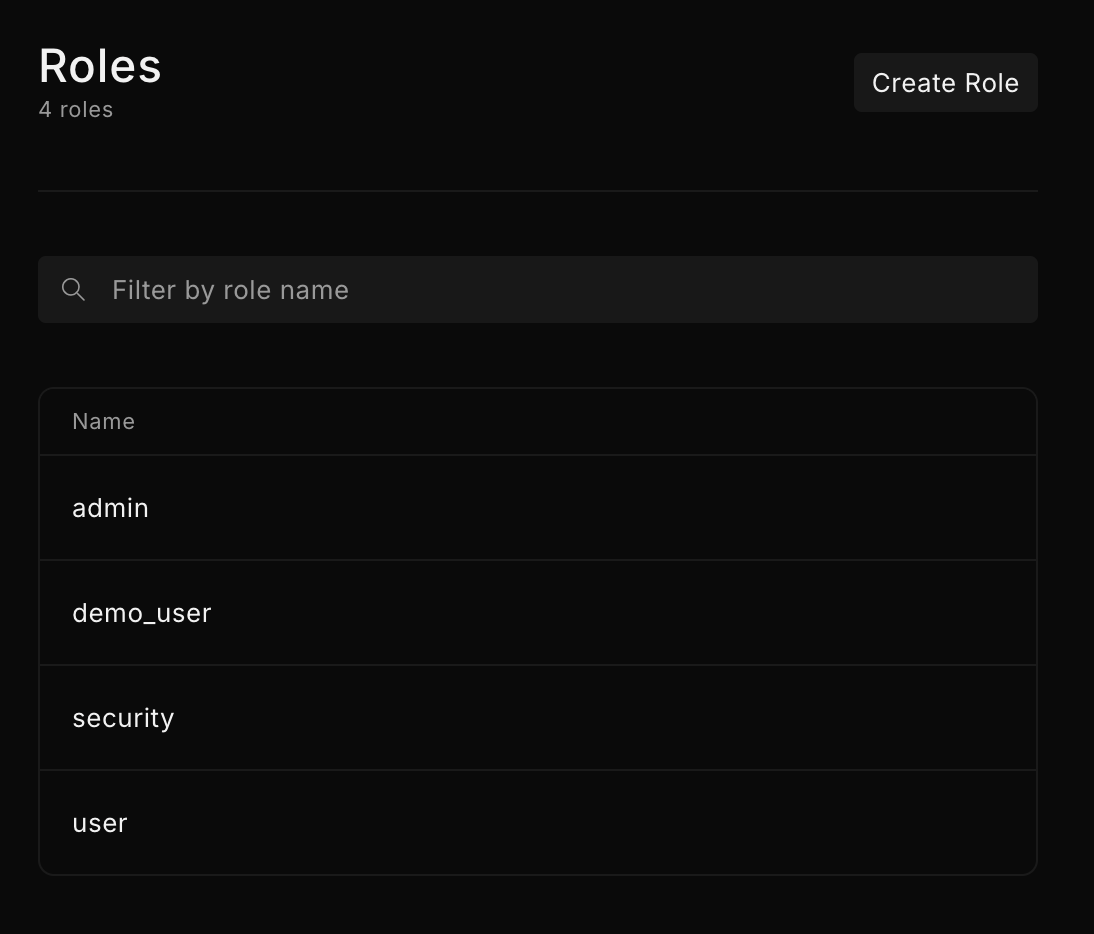
Any user with the appropriate `Manage Roles` and `Manage Permissions` permissions can manage roles, permissions, and actor assignments through the **Settings** > **Roles** UI. By default, this is only the `admin` role.
**Creating Roles**: Define a new role and assign permissions. This requires the `Manage Team Roles` permission.
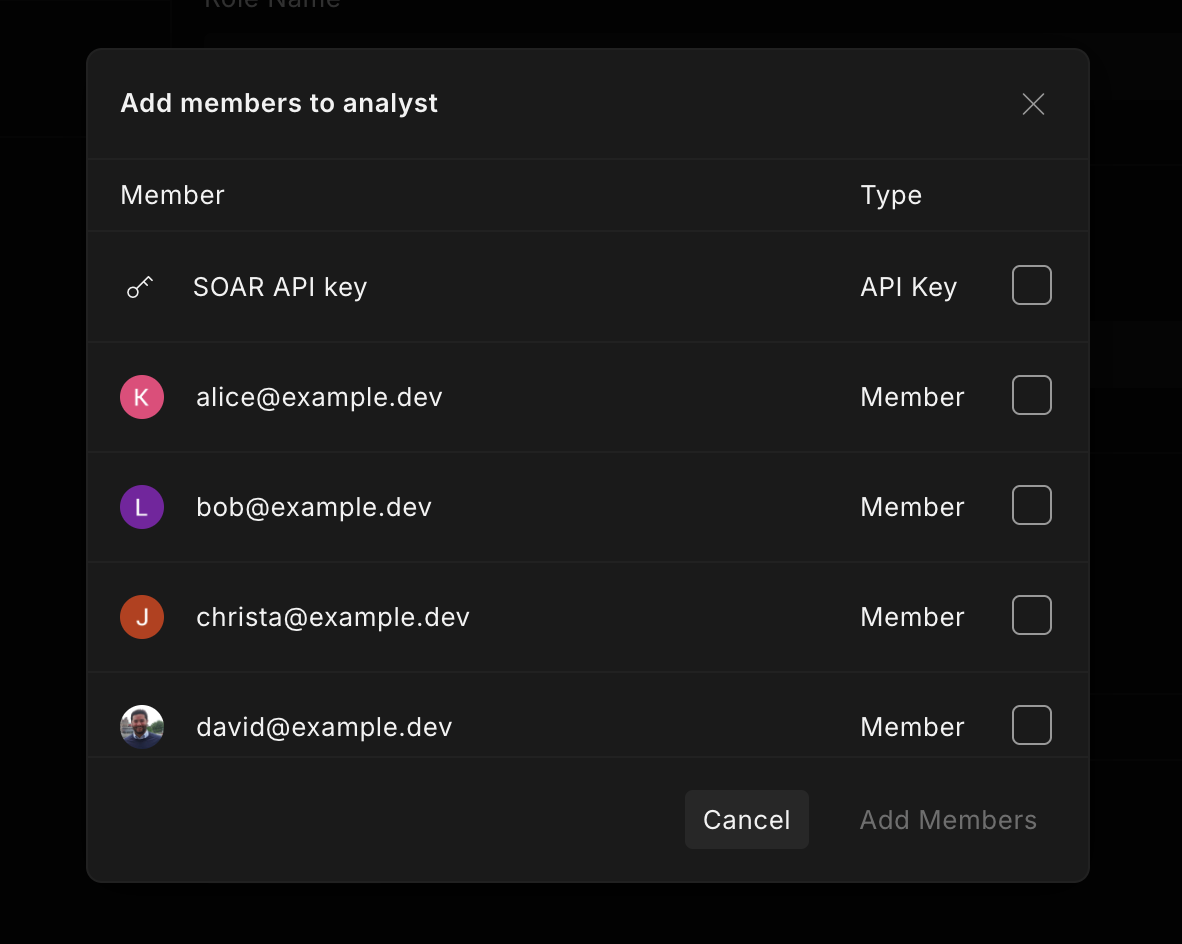
**Assigning Members**: Link actors like Users and API Keys to roles. For example, an API Key for your SOAR might be assigned the `analyst` role for automated querying on specific indexes. This requires either the `Manage User Roles` or `Manage API Key Roles` permissions.
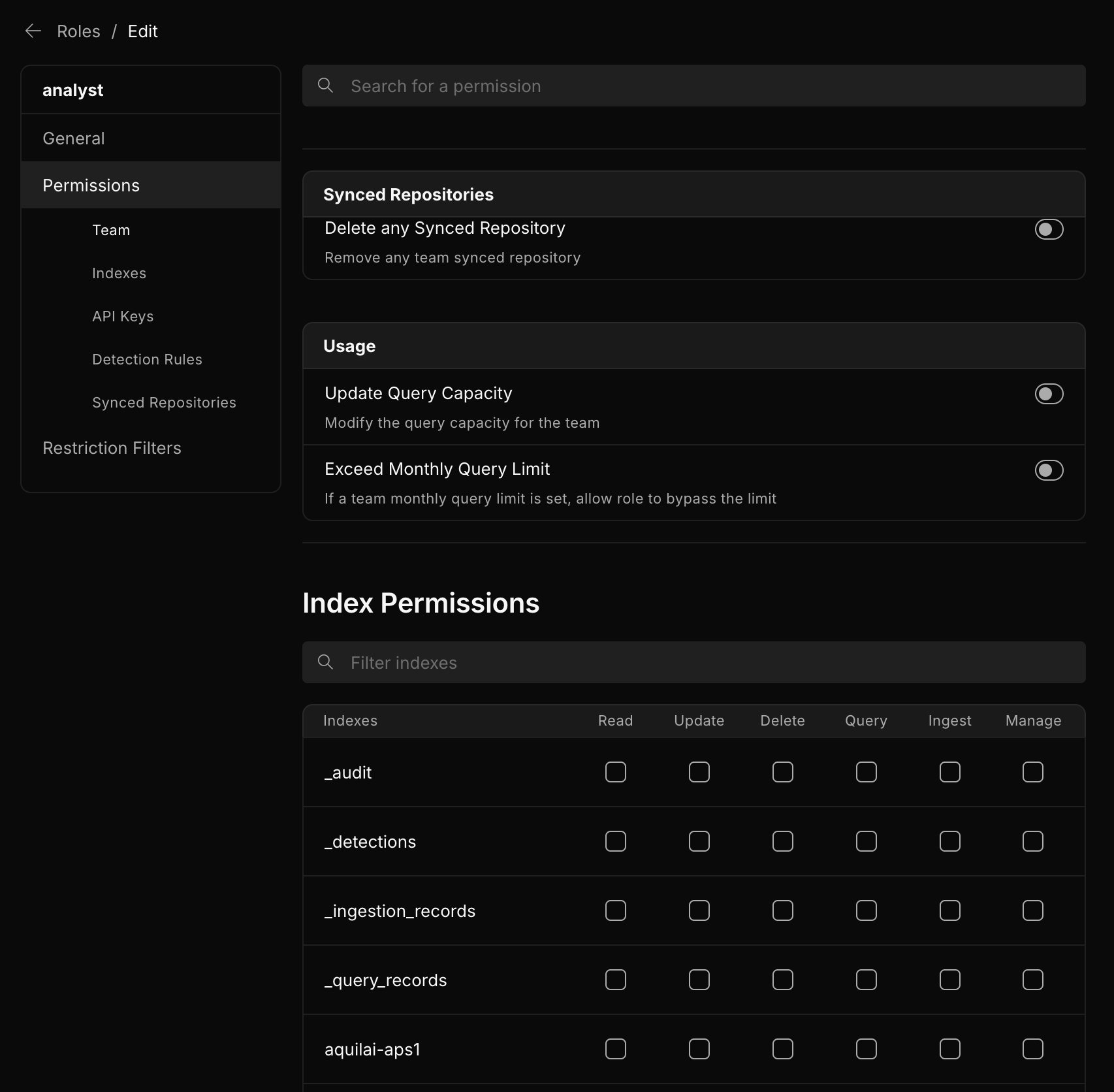
**Modifying Permissions**: Update what a role can do, like managing the **Team**, interacting with **Indexes**, managing **API Keys**, managing **Detection Rules**, and integrating **Synced Repositories** from GitHub. This requires the `Manage Team Permissions` permission.
**Modifying Restriction Filters**: Update what log events a role can see (see [Restriction Filters](#restriction-filters)). This requires the `Manage Team Roles` permission.
Admins and other users with appropriate permissions can query the `_audit` index to monitor and review actions taken by Users, API Keys, or other actors within Scanner. This index logs details such as who performed an action, what action was taken (e.g., starting a query, modifying a detection rule), and when it occurred. By querying the `_audit` index—via the Search UI or via the Ad-Hoc Search API—authorized users can track usage patterns, troubleshoot issues, or ensure compliance with organizational policies.
Further documentation:
* [Built-in Indexes - `_audit`](/scanner/using-scanner-complete-feature-reference/built-in-indexes/_audit.md)
* [Ad-hoc Search Queries API](/scanner/using-scanner-complete-feature-reference/developer-tools/api/ad-hoc-queries.md)
---
# Agent Instructions
This documentation is published with GitBook. GitBook is the documentation platform designed so that both humans and AI agents can read, navigate, and reason over technical content effectively. Learn more at gitbook.com.
## Querying This Documentation
If you need additional information that is not directly available in this page, you can query the documentation by asking a question.
Perform an HTTP GET request on the following URL with the `ask` and `goal` query parameters:
```
GET https://docs.scanner.dev/scanner/using-scanner-complete-feature-reference/administration/role-based-access-control-rbac.md?ask=&goal=
```
`ask` is the immediate question: it should be specific, self-contained, and written in natural language.
`goal` is what the user is ultimately trying to achieve, the reason they need the answer. Sharing it helps GitBook give you a better, more relevant answer. A goal is most helpful when it describes the outcome the user wants rather than restating the question. For example, with `ask=how do I create an API token`, a goal like `automate deployments from our CI pipeline` lets GitBook tailor the answer to that use case.
The response will contain a direct answer to the question and relevant excerpts and sources from the documentation.
Use this mechanism when the answer is not explicitly present in the current page, you need clarification or additional context, or you want to retrieve related documentation sections.