# Deploy via n8n

[n8n](https://n8n.io) is an open-source workflow automation platform. You build workflows as a graph of nodes: triggers, actions, and AI nodes. Scanner agents ship as importable `workflow.json` files from the [`scanner-inc/agents`](https://github.com/scanner-inc/agents/tree/main/n8n) repository.

## What these agents do

### Alert triage agent

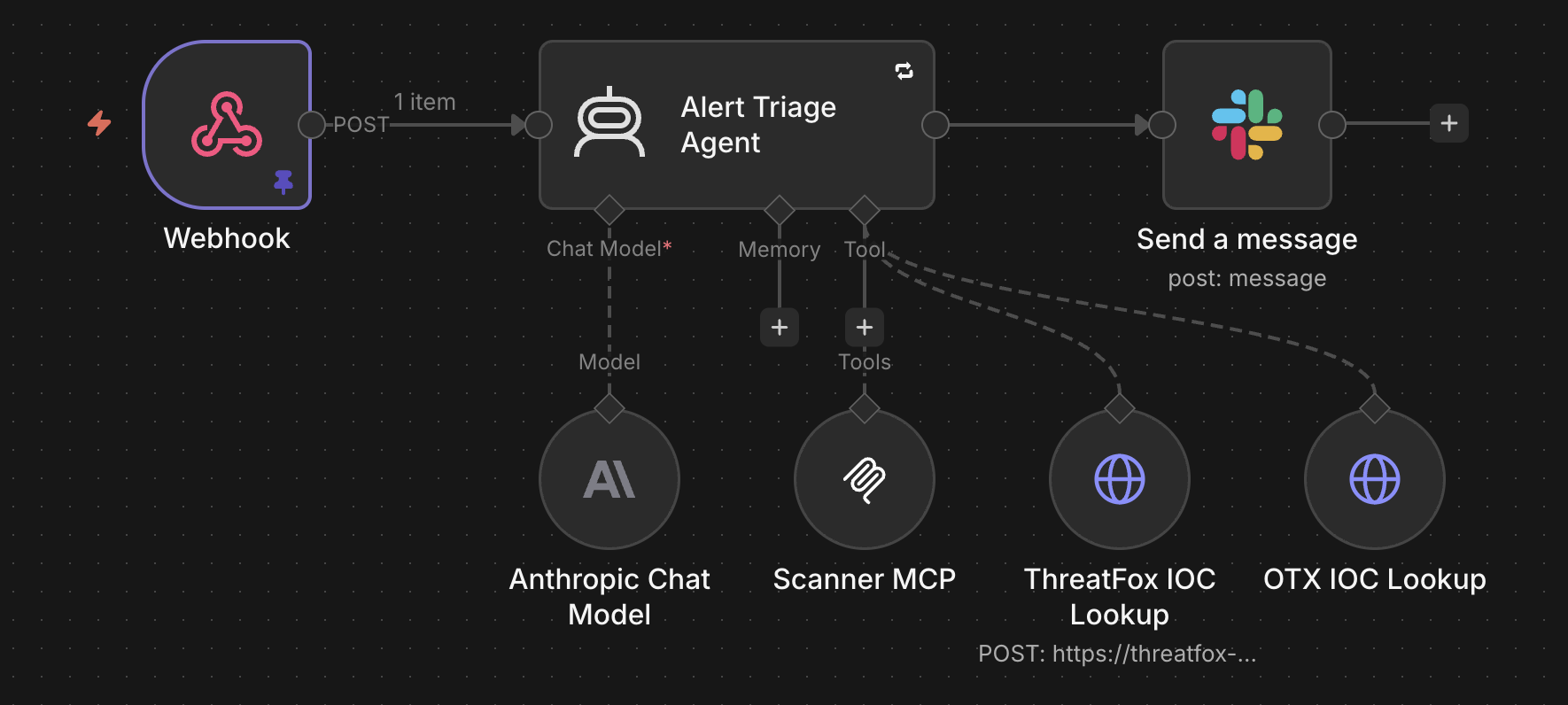
A webhook-triggered agent that investigates Scanner detection alerts and posts a structured finding to Slack. When a detection fires, the agent:

1. Reviews the alert and generates 2 to 4 hypotheses for what caused it (benign activity, misconfiguration, real attack, insider threat).
2. Queries Scanner MCP for evidence in a 4 to 6 hour window around the event — related activity from the same user, IP, or account, and expansion indicators like privilege escalation, lateral movement, or persistence.
3. Classifies the alert as BENIGN, SUSPICIOUS, or MALICIOUS with a confidence percentage.
4. Runs two self-critique passes before committing to a classification.
5. Posts a Slack finding with a TL;DR, classification, timeline, hypothesis testing, key evidence, MITRE ATT\&CK tags (for MALICIOUS classifications), and recommended next questions.

**Why run it.** Most detection alerts in a mature SOC are false positives. Manual triage is repetitive work that analysts would rather spend on real threats. This agent does that work in seconds per alert, filters the obvious benign cases, and gives analysts a pre-populated finding for the interesting ones. Analysts skim the Slack thread, verify or override the classification, and act.

<figure><img src="/files/E5vfz5LKO88H7WwGShlT" alt=""><figcaption><p>Alert triage workflow in n8n: webhook trigger, AI Agent with Anthropic, Scanner MCP, and threat-intel HTTP tools, Slack post.</p></figcaption></figure>

See [`n8n/alert-triage/`](https://github.com/scanner-inc/agents/tree/main/n8n/alert-triage) for the workflow, the system prompt (`prompts/triage-agent.md`), and sample webhook payloads for local testing.

### Daily posture reporting agent

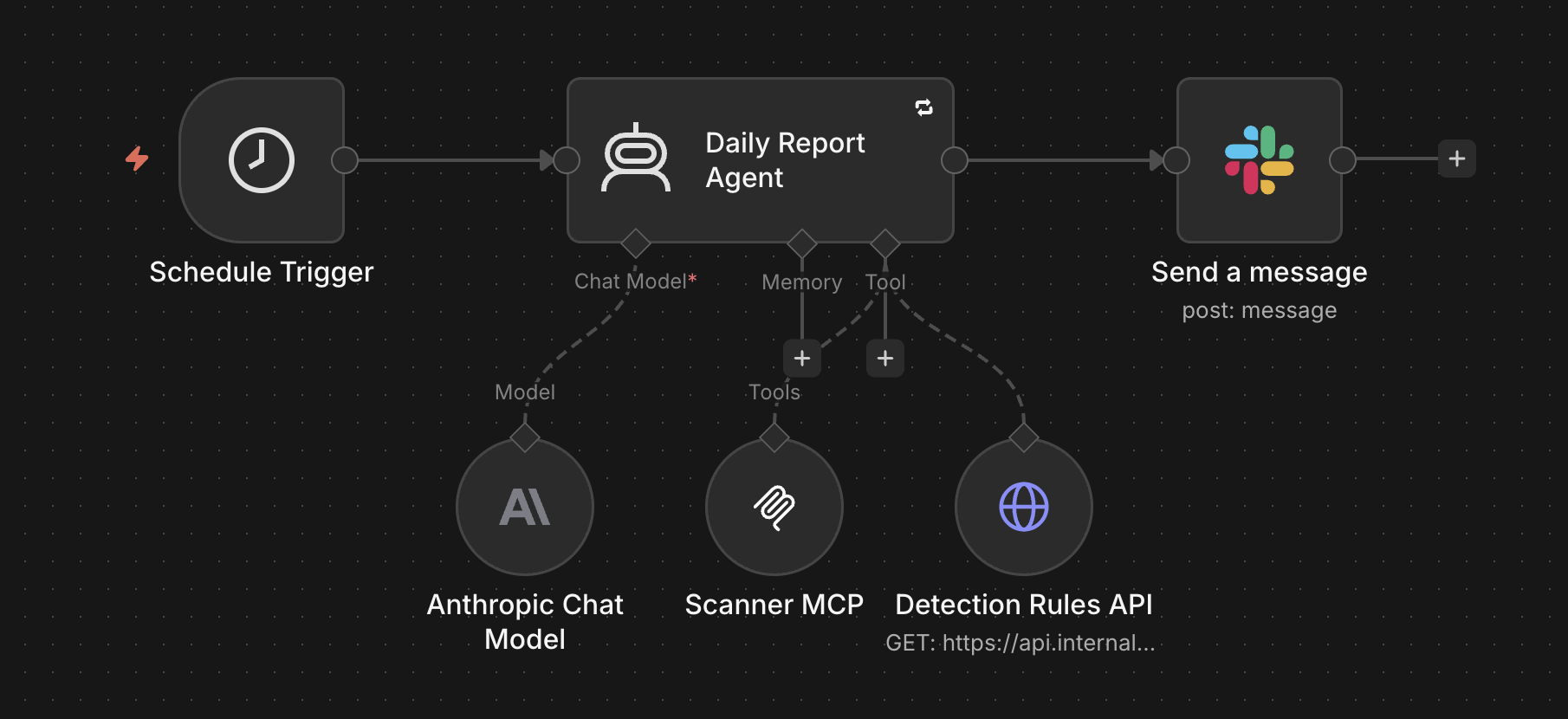
A scheduled agent that posts a daily posture digest of the Scanner environment to Slack. Each run:

1. Discovers available indices and source types via `get_scanner_context`.
2. Pages through all active detection rules via the Detection Rules REST API, collecting names, severities, MITRE tags, query text, and last-fired timestamps.
3. Queries Scanner MCP for log volume and detection alert counts over the last 24 hours.
4. Computes coverage gaps: log sources producing volume but targeted by no rules, MITRE ATT\&CK tactics (of 14) with zero covered techniques, and zombie rules that have not fired in more than 90 days.
5. Generates recommendations grounded in canonical reference lists baked into the prompt: the full MITRE tag namespace Scanner uses (14 tactics, roughly 180 techniques), Scanner's native supported log sources, and sources bridgeable via Monad.
6. Posts a compact Slack digest: environment totals, top log sources by volume, 24-hour alert activity, coverage gaps, and specific "expand log sources" and "expand MITRE coverage" recommendations.

**Why run it.** Detection coverage drifts silently. Logs get ingested that nobody writes rules for, new MITRE techniques emerge, rules go stale. A daily digest keeps detection engineering on the team's radar without anyone having to remember to check. Recommendations are specific: "write a rule for `techniques.t1568.dynamic_resolution` (Command and Control) using the Route 53 Resolver logs you already ingest" beats "improve coverage".

<figure><img src="/files/3rfZWRFC3FtSEXSlIhio" alt=""><figcaption><p>Daily posture reporting workflow in n8n: schedule trigger, AI Agent with Anthropic, Scanner MCP, and the Detection Rules API HTTP tool, Slack post.</p></figcaption></figure>

See [`n8n/daily-reporting/`](https://github.com/scanner-inc/agents/tree/main/n8n/daily-reporting) for the workflow and the system prompt.

### Threat hunting agent

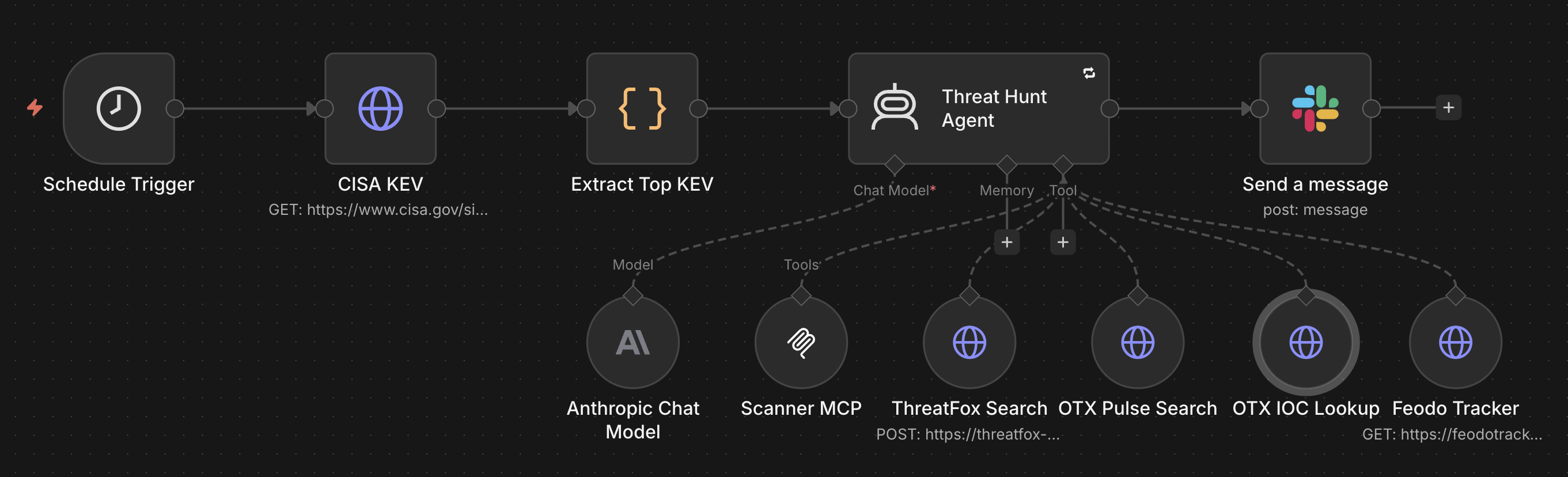
A scheduled agent that proactively hunts for evidence of compromise across historical Scanner logs. Runs every 6 hours by default. Each run:

1. Discovers indices and source types via `get_scanner_context`.
2. Reviews fresh CISA KEV entries (top 5 most recently added) and pulls related IOCs (IPs, domains, hashes) from three threat intel sources, exposed as HTTP Request Tool nodes rather than an MCP server: ThreatFox, AlienVault OTX, and Feodo Tracker. Filters for indicators relevant to the customer's ingested log sources.
3. Sweeps historical Scanner logs for the IOCs using wildcard field search. Pivots to targeted behavioral queries on the matching index when hits land, to build context.
4. Correlates across log sources, builds a timeline, maps to MITRE ATT\&CK, and flags visibility gaps.
5. Posts a single Slack findings report: hunt target, IOCs searched, results (evidence found / inconclusive / no evidence), timeline, MITRE tags, visibility gaps, and recommended next questions.

**Why run it.** Known-bad IOCs land in public feeds daily. A SOC without a threat hunting program typically has no systematic way to check for them across its log history. This agent runs while the team sleeps, checks every IOC in a fresh batch against Scanner's full log history, and only pages the team when a hit lands or when a clean sweep is itself notable (e.g., a high-priority CVE just dropped and the environment is verified clear).

Also available as an AWS deployment — see [Deploy via AWS](/scanner/using-scanner-complete-feature-reference/mcp-and-ai-secops/deploying-agents/aws.md#threat-hunting-agent) if you need it inside your VPC. The n8n version differs in two ways worth knowing: it posts a single findings report rather than separate "hunt starting" and "hunt complete" messages, and it wires three threat intel sources directly as HTTP Request Tools (ThreatFox, OTX, Feodo) instead of going through the dedicated `mcp-threatintel-server` the AWS version uses.

<figure><img src="/files/XdW2K7wwfMCuLm4JtUNC" alt=""><figcaption><p>Threat hunting workflow in n8n: schedule trigger, CISA KEV pre-fetch, AI Agent with Anthropic, Scanner MCP, ThreatFox, OTX, and Feodo Tracker tools, Slack post.</p></figcaption></figure>

See [`n8n/threat-hunting/`](https://github.com/scanner-inc/agents/tree/main/n8n/threat-hunting) for the workflow, the system prompt, and the threat intel HTTP tool wiring.

### Slack bot agent

An interactive Scanner SOC assistant you `@` mention in Slack. The bot reads thread or channel context, summarizes what you asked, posts a plan, then executes the plan against Scanner MCP and posts the finding — all in the same thread.

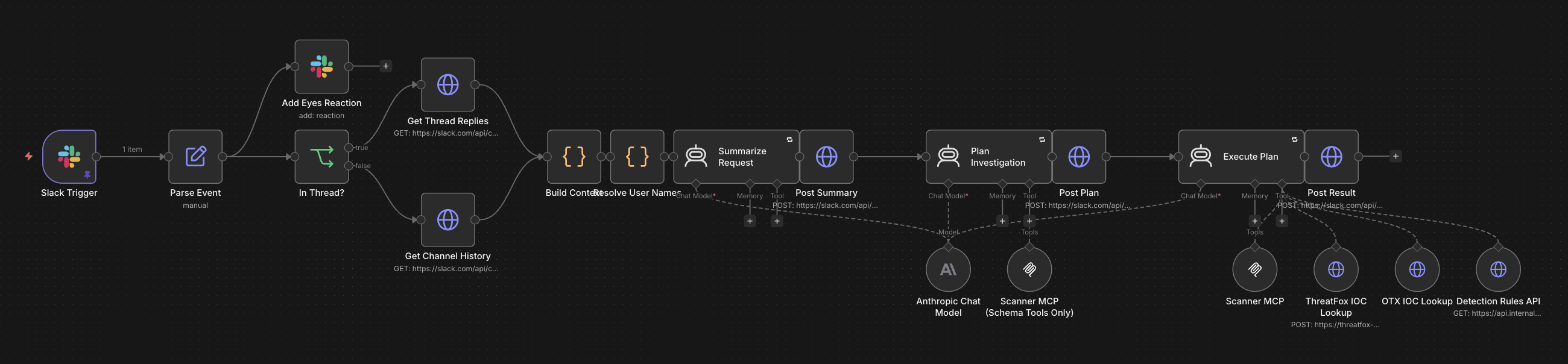
**Three chained AI Agent nodes, not one.** n8n's AI Agent node is a black box: it runs its full reasoning loop internally and emits a single output, with no way to interleave Slack posts mid-execution. To show progress to the user, the workflow splits the work across three separate agents with a Slack post between each one:

1. **Summarize** — one-line restatement of what the user asked, prefixed `*[1/3]*` 💭. No tools.
2. **Plan** — a 3 to 6 bullet investigation plan, prefixed `*[2/3]*` 📋. Has a Scanner MCP node, but a deliberately filtered one (see below).
3. **Execute** — runs the plan against Scanner MCP, produces the finding, prefixed `*[3/3]*` ✅. Has the unfiltered MCP client. Retry On Fail enabled here only — the user has already seen the summary and plan, so a transient overload doesn't lose context.

This split serves as a visibility checkpoint without baking approval logic into an agent loop. If Execute goes wrong, the user already sees the plan it was working from.

**Schema-only MCP for the planning step.** Two MCP Client Tool nodes are wired into the workflow: one filtered to `get_scanner_context`, `get_top_columns`, and `get_docs`, and one unfiltered. Plan gets the filtered node; Execute gets the unfiltered one. The schema tools physically return metadata, not log events, so Plan can ground its bullets in the tenant's actual indexes and fields without being able to slip into investigation. This is the pattern most worth lifting if you build your own multi-phase agent: separate "planning that grounds in schema" from "execution that touches data" by tool surface, not by prompt discipline.

**Other details worth knowing.** The trigger is a Slack Trigger node on `app_mention` events (handles URL verification and request signing automatically). A 👀 reaction is added to the mention message in parallel with the rest of the flow as immediate acknowledgment. Thread context is read via direct HTTP calls to `conversations.replies` because the Slack node version doesn't expose a thread-replies operation. User IDs in the context are resolved to display names via `users.info` so the model sees `@Alice` instead of `<U12345>`.

<figure><img src="/files/oXdZpk5Y1dw4UuN5ZjJf" alt=""><figcaption><p>Slack bot workflow in n8n: Slack Trigger and context-building, then three chained AI Agents (Summarize, Plan, Execute) with intermediate Slack posts. Both Scanner MCP nodes are wired: schema-only into Plan, full client into Execute.</p></figcaption></figure>

See [`n8n/slack-bot/`](https://github.com/scanner-inc/agents/tree/main/n8n/slack-bot) for the workflow, the three system prompts (`prompts/{summarize,plan,execute}.md`), the Slack app manifest requirements, and a sample `app_mention` payload.

## Prerequisites

* An n8n instance. Options:
  * **n8n Cloud** ([n8n.io/cloud](https://n8n.io/cloud)): fastest to start. 14-day trial. Pro plan required for team workspaces and variables.
  * **Self-hosted Docker**:

    ```bash
    docker run -it --rm \
      -p 5678:5678 \
      -v ~/.n8n:/home/node/.n8n \
      -e N8N_SECURE_COOKIE=false \
      n8nio/n8n start --tunnel
    ```

    The `--tunnel` flag gives you a public URL so Scanner can POST webhooks to your laptop during development. For production, host n8n somewhere with a stable public URL (Railway, Fly.io, Render, or your own VPC).
* An Anthropic API key.
* A Scanner API key with read access to your tenant's MCP and Detection Rules API.
* A Slack workspace and a channel where agent findings will be posted.

## Import a workflow

Pick an agent from [`scanner-inc/agents/n8n`](https://github.com/scanner-inc/agents/tree/main/n8n) and download its `workflow.json`. In n8n: **Workflows** → **Import from File** → select the `workflow.json`.

## Create credentials

The imported workflow references credentials by name. Create each one in **Credentials** before activating the workflow. Names must match exactly.

* **Anthropic account** (type: Anthropic API) — your Anthropic API key.
* **Bearer Auth account** (type: HTTP Bearer Auth) — your Scanner API key. n8n adds the `Bearer` prefix automatically. The same credential is used for the Scanner MCP and the Detection Rules REST API.
* **Slack account** (type: Slack OAuth2 or Slack API) — follow n8n's prompts to connect your workspace.
* **Header Auth account** (type: HTTP Header Auth) — only needed by `alert-triage/`. Name the header `x-scanner-to-n8n-webhook-key` and set the value to a random secret you generate. Scanner will include this header on every webhook POST.
* **OTX API account** and **abuse.ch API account** — only needed by `threat-hunting/`. Free keys from [otx.alienvault.com](https://otx.alienvault.com/) and [abuse.ch](https://abuse.ch/) (the abuse.ch key authenticates both ThreatFox and Feodo Tracker). Wire them as Header Auth credentials on the corresponding HTTP Request Tool nodes.

## Configure environment-specific values

Open each node in the imported workflow and replace placeholders:

* **Scanner MCP** node (URL field): replace `mcp.your-env.scanner.dev` with your tenant's MCP hostname.
* **Detection Rules API** node (URL field, daily-reporting only): replace `api.your-env.scanner.dev` with your tenant's REST API hostname. Also set the `tenant_id` query parameter's value to your actual tenant UUID (find it in Scanner under **Settings**).
* **Send a message** (Slack) node: replace the placeholder channel ID with your reporting channel.

## Wire up the trigger

### For `alert-triage/` (webhook)

1. In Scanner, go to **Settings** → **Event Sinks** → **Create New Sink** → **Webhook**.
2. **URL**: the Production URL from the Webhook node in n8n (or the tunnel URL during local development). The path is `/webhook/scanner-alert`.
3. **Headers**: add a custom header matching your n8n Header Auth credential:
   * Name: `x-scanner-to-n8n-webhook-key`
   * Value: the same secret you stored in n8n
4. Save the event sink. Click **Send Test Event** to verify the round trip.
5. Attach the event sink to the detection rules you want triaged.

### For `daily-reporting/` (schedule)

The imported workflow has a Schedule Trigger set to `0 8 * * *` (08:00 UTC daily). Edit to suit your team's timezone. Then activate the workflow.

### For `threat-hunting/` (schedule)

The imported workflow has a Schedule Trigger set to `0 */6 * * *` (every 6 hours). Adjust to suit your team. Then activate the workflow.

### For `slack-bot/` (Slack `app_mention` event)

The imported workflow uses a Slack Trigger node, not a generic Webhook. You wire the Slack app's Events API to it:

1. Activate the workflow and copy the **Production URL** from the Slack Trigger node.
2. In your Slack app's [API config](https://api.slack.com/apps), under **Event Subscriptions**, paste the URL into **Request URL** (Slack will verify it automatically), then subscribe to the `app_mention` bot event.
3. Under **OAuth & Permissions**, the bot needs at minimum: `app_mentions:read`, `channels:history`, `groups:history`, `chat:write`, `reactions:write`, and `users:read` (for resolving Slack user IDs to display names).
4. Reinstall the app to your workspace so the new scopes take effect.

The repo's [`slack-bot/setup.md`](https://github.com/scanner-inc/agents/tree/main/n8n/slack-bot) ships a ready-to-paste Slack app manifest if you'd rather not configure scopes by hand.

## Verify

1. Activate the workflow.
2. For `alert-triage/`: run `curl` against the webhook URL with a sample payload (one is included in the repo's `sample-payloads/` directory). The execution appears in n8n; the Slack node posts the finding.
3. For `daily-reporting/` and `threat-hunting/`: click **Execute workflow** in the n8n UI to run it once manually without waiting for the cron.
4. For `slack-bot/`: `@` mention the bot in any channel it's been invited to. You should see the 👀 reaction immediately, then three threaded posts (`*[1/3]*` summary, `*[2/3]*` plan, `*[3/3]*` finding). The Slack Trigger node also has a sample `app_mention` payload pinned, so you can execute the workflow from the canvas without sending a real Slack event.

## Troubleshooting

### My imported `workflow.json` misbehaves (often after AI generation)

This is the single most common cause of weird n8n issues with these agents. AI assistants like Claude Code don't reliably know the *current* `typeVersion` of n8n nodes — they tend to write deprecated values into generated `workflow.json` files. After import, those nodes silently use old behavior:

* MCP Client Tool < 1.2 falls back to SSE transport. Scanner MCP requires Streamable HTTP and rejects with **401 "Non-200 status code"**.
* Anthropic Chat Model < 1.3 doesn't list Claude 4.x in the model dropdown, so the workflow points at a Claude 3.x model that may not behave as expected.
* A workflow that worked before an n8n upgrade can break afterwards because `typeVersion` is sticky on existing nodes — `docker pull n8nio/n8n` updates the image but doesn't update existing nodes already on the canvas.

**The reliable workaround.** Don't hand-edit `typeVersion`s and don't trust the AI's guess:

1. In n8n, drag the node fresh from the palette (e.g., add a new MCP Client Tool node, then delete the broken one and reconnect the wires).
2. Save and export the workflow.
3. Open the exported `workflow.json` and copy the actual `typeVersion` value the n8n UI just produced.
4. Tell Claude Code (or whichever AI you're using) the correct `typeVersion` for that node going forward.

This is a one-time cost per node type in your environment.

### Other common errors

* **Webhook 401** (alert-triage): the `x-scanner-to-n8n-webhook-key` header is missing or does not match your credential value. Check the Scanner event sink header config.
* **Slack Trigger fails URL verification** (slack-bot): the Slack Trigger node has to be saved and the workflow activated before Slack will accept the Request URL. If you re-create the trigger node, the URL changes and Slack needs to re-verify.
* **Anthropic "Overloaded" errors**: enable Retry On Fail on the AI Agent node (3 tries, 5 to 10 second wait). If overloads persist, switch to a less-loaded model.
* **Agent leaks preamble into Slack output** ("I have enough data..." before the formatted finding): the workflows ship with a defensive expression on the Slack node's text field that slices from the expected emoji character. If you rebuild the Slack node, apply the same pattern.

See each workflow's own README in the repository for workflow-specific details and the canonical list of known issues.


---

# Agent Instructions: Querying This Documentation

If you need additional information that is not directly available in this page, you can query the documentation dynamically by asking a question.

Perform an HTTP GET request on the current page URL with the `ask` query parameter:

```
GET https://docs.scanner.dev/scanner/using-scanner-complete-feature-reference/mcp-and-ai-secops/deploying-agents/n8n.md?ask=<question>
```

The question should be specific, self-contained, and written in natural language.
The response will contain a direct answer to the question and relevant excerpts and sources from the documentation.

Use this mechanism when the answer is not explicitly present in the current page, you need clarification or additional context, or you want to retrieve related documentation sections.