# Getting Started

### 1. Create a new GitHub repository for detection rules

We recommend [creating a new GitHub repository](https://docs.github.com/en/repositories/creating-and-managing-repositories/creating-a-new-repository) in your organization for Scanner detection rules.

Add detection rule YAML files to your new repository. See [Writing Detection Rules](/scanner/using-scanner-complete-feature-reference/detections-and-alerting/detection-rules/detection-rules-as-code/writing-detection-rules.md)for information on how to write detection rules.

### 2. Connect to the Scanner GitHub App

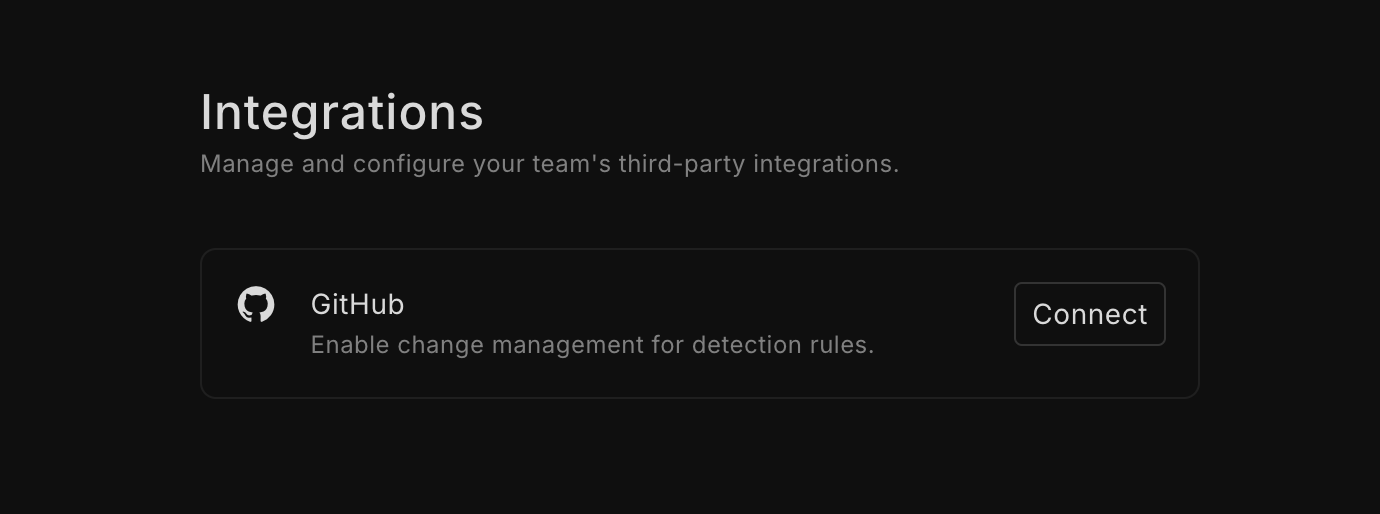
Go to **Settings > Integrations** on your Scanner instance to connect your GitHub account.

<figure><img src="/files/YlcqGBhgi6AKcjfx4B8g" alt="" width="563"><figcaption><p>Integrations page</p></figcaption></figure>

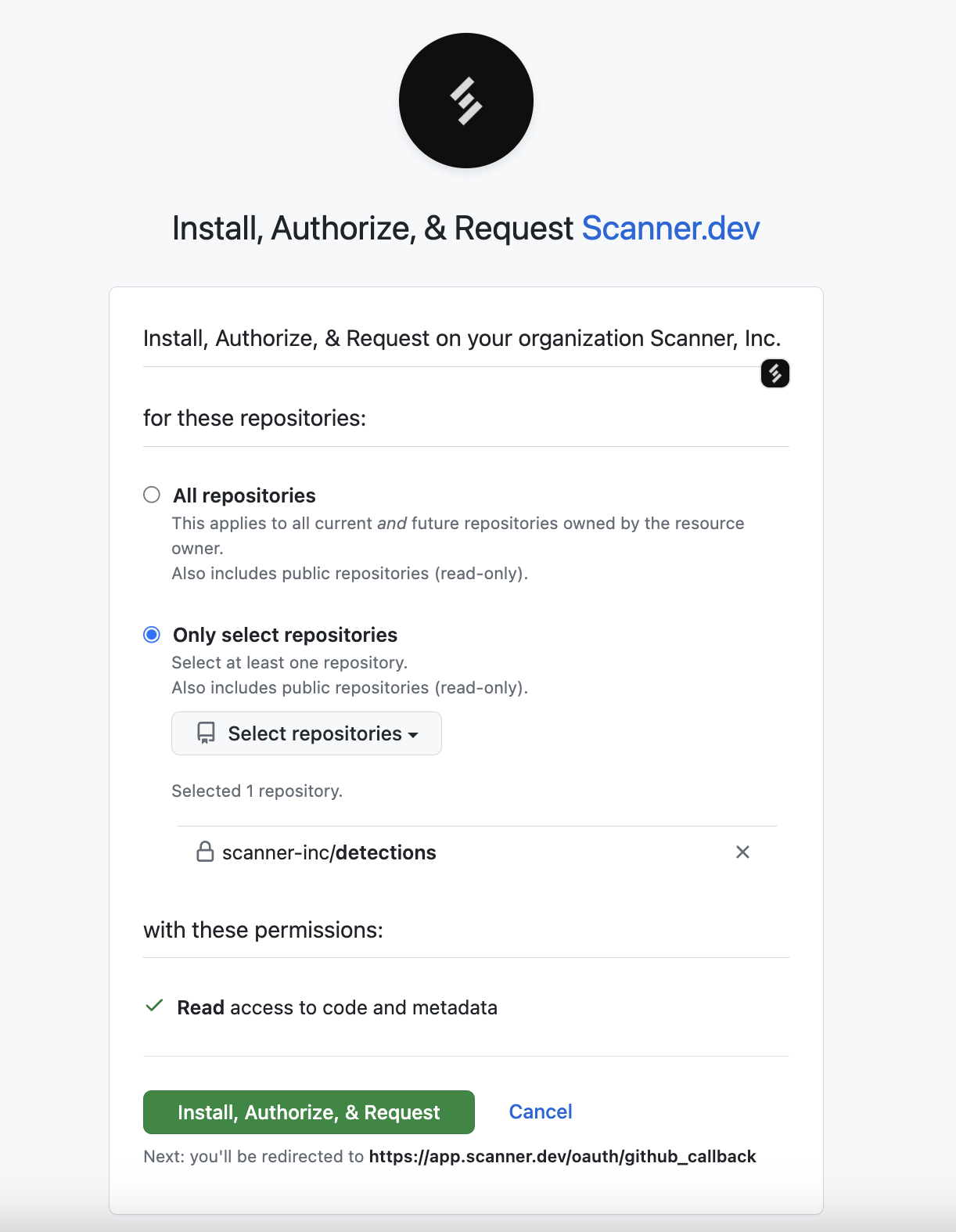
Choose which account to connect to and which repositories the Scanner GitHub App can access. The App will **only** have read access to code and metadata in the selected repositories.

You will need to be logged into GitHub and have appropriate permissions on the selected repositories in order to complete this process.

<figure><img src="/files/hZW9WkqNFzalXwSDW1OK" alt="" width="563"><figcaption><p>Allow access to select repositories</p></figcaption></figure>

If you want to connect multiple accounts, click on **Connect** again to select another account.

You will be able to configure repositories after connecting to the GitHub App, if you want to give the Scanner App access to more repositories or revoke access to repositories later.

### 3. Add a sync source

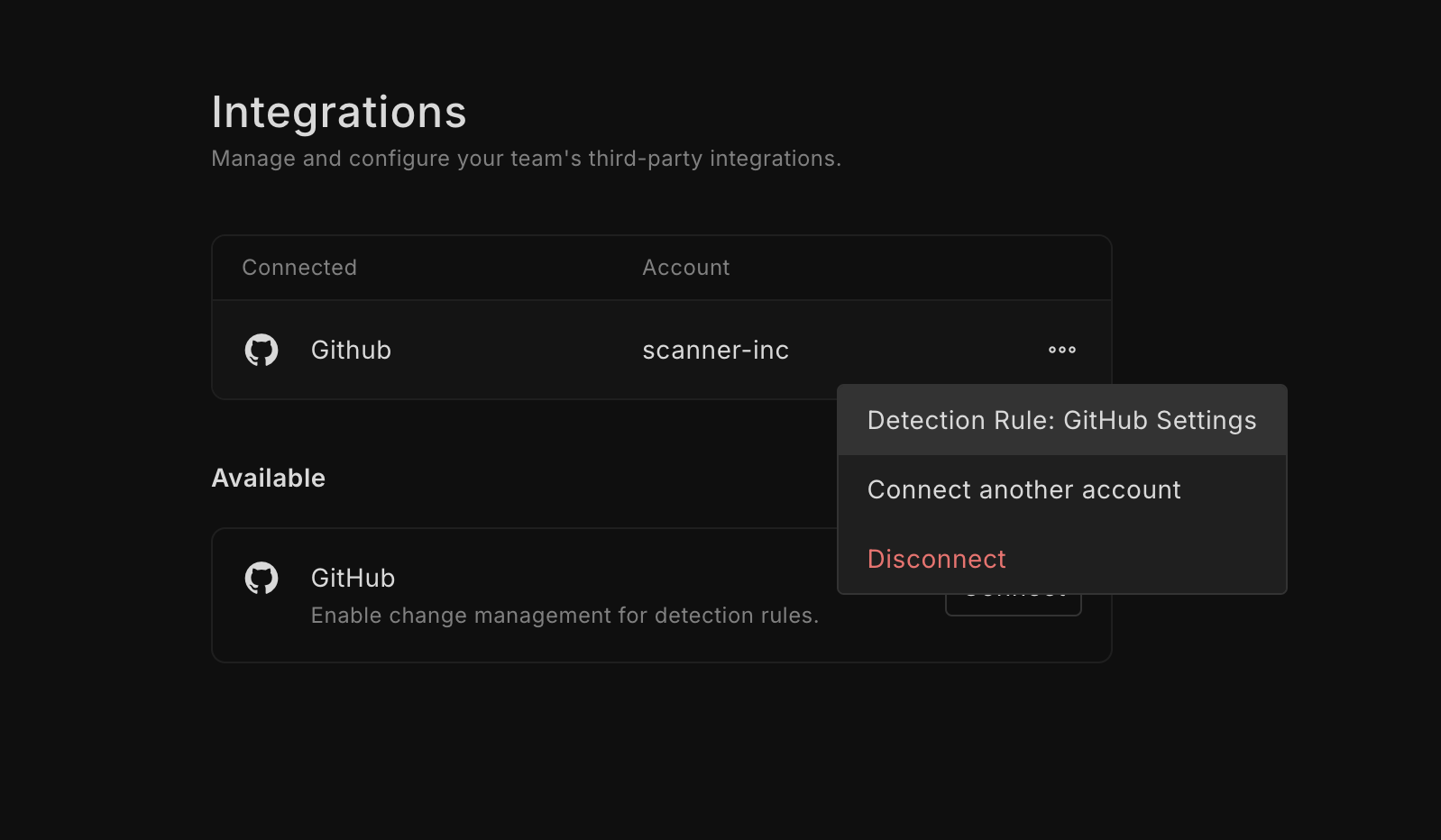
After connecting your GitHub account, go to **Detection Rule: GitHub Settings**.

<figure><img src="/files/WuEt7FXmDqMF4brDY6GF" alt="" width="563"><figcaption><p>GitHub integration options</p></figcaption></figure>

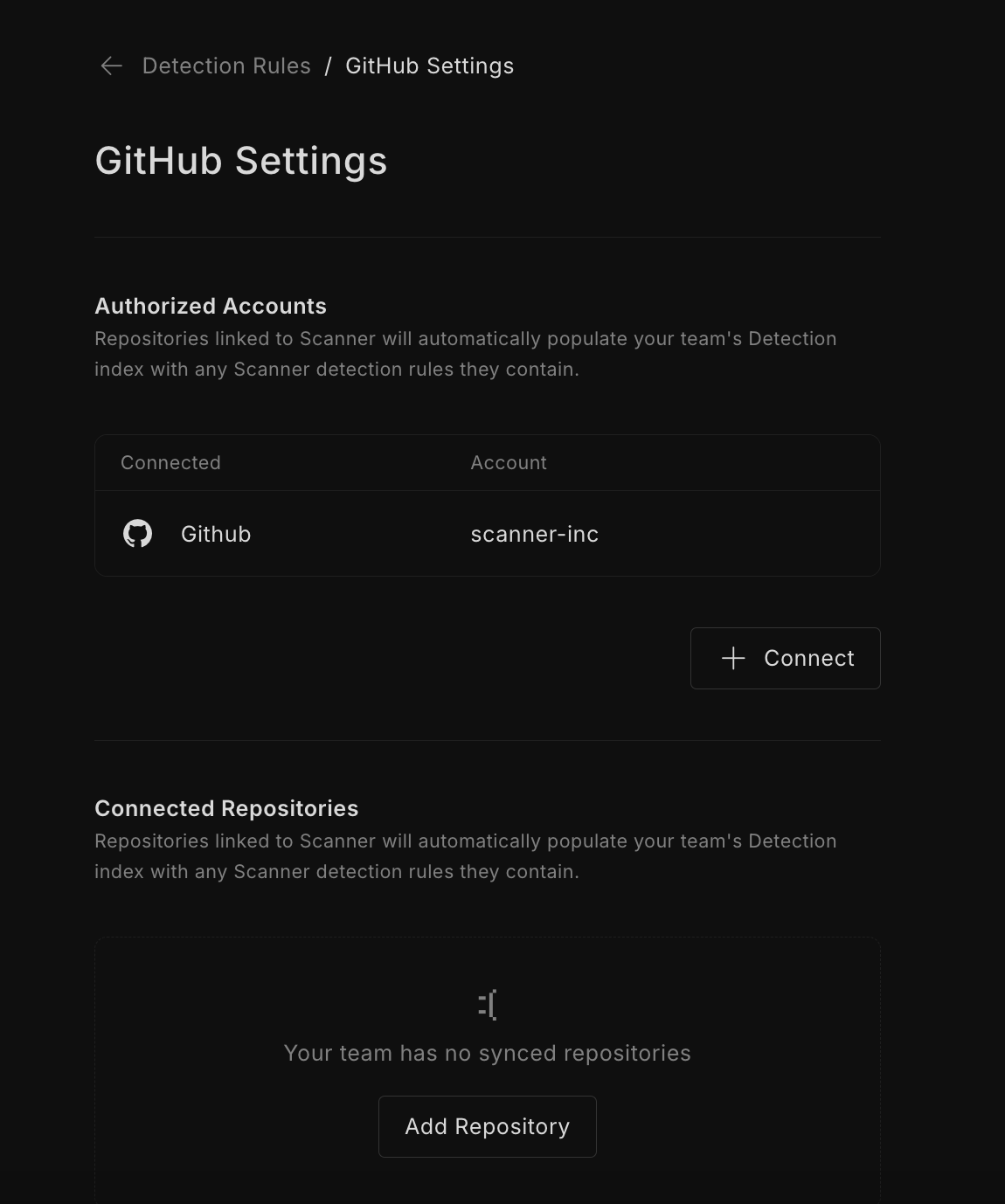
On this page, you will see all connected GitHub accounts and sync sources.

<figure><img src="/files/wVVxV0nHBNrBxWrEXhrq" alt="" width="563"><figcaption><p>GitHub settings page</p></figcaption></figure>

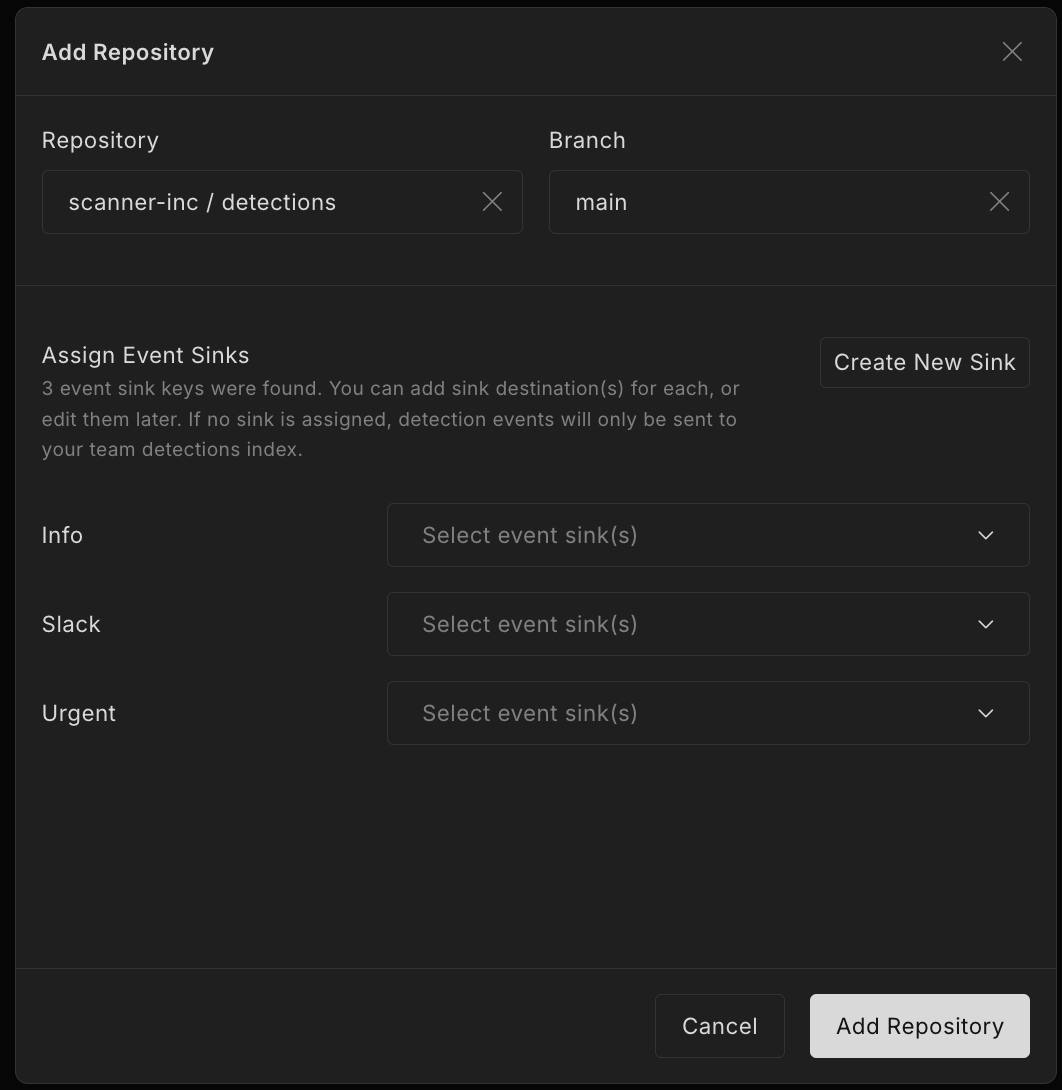
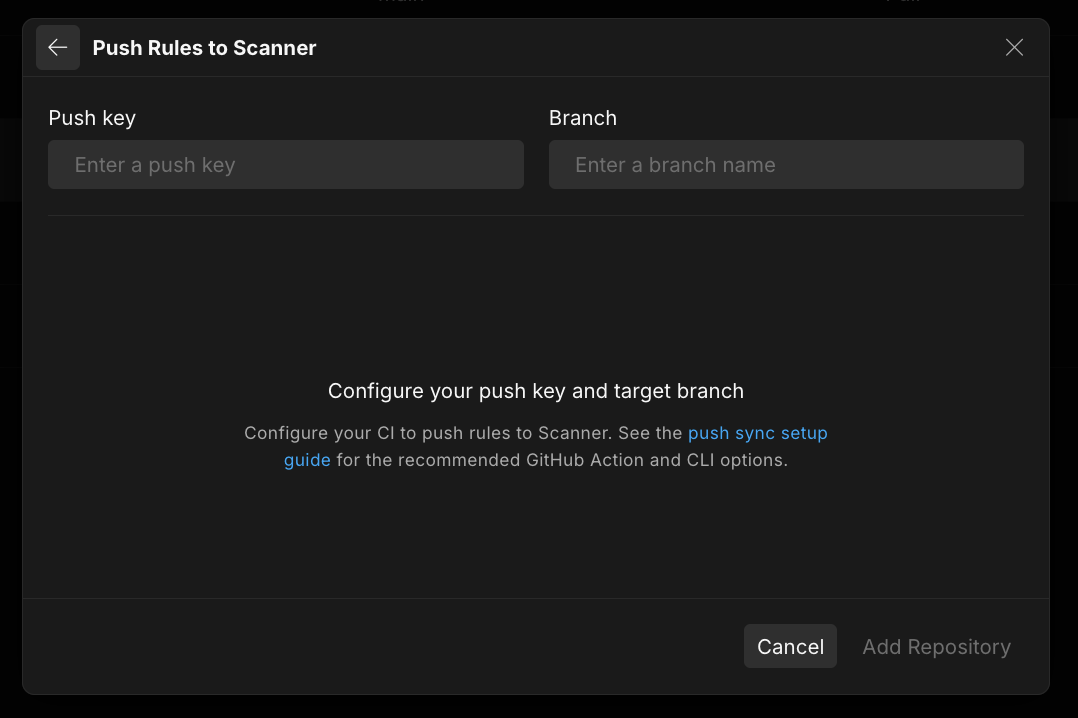
To add a new sync source, click **Add Repository**. Select the repository and branch that you would like to sync from.

<figure><img src="/files/K9Qt1YQ1fekmdJaxBEte" alt="" width="563"><figcaption><p>Add a sync source</p></figcaption></figure>

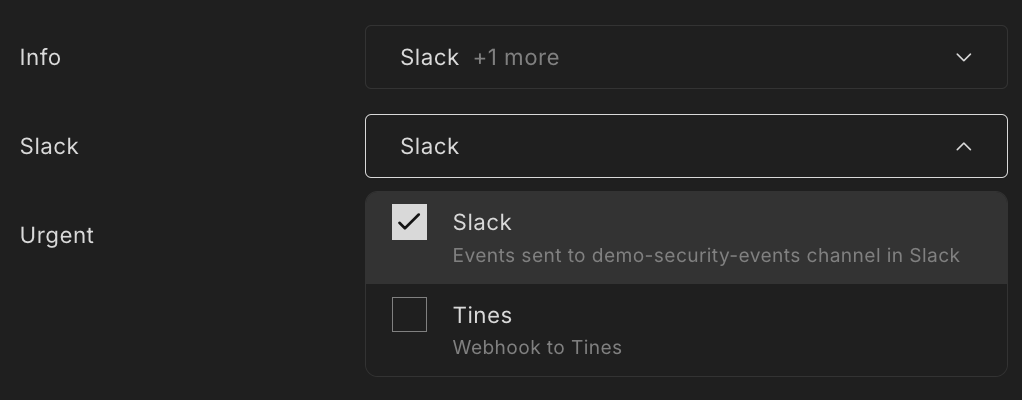
You will be prompted to assign event sinks to each key in this sync source. You can select one or more event sinks to assign to each key (or leave it blank). These keys are defined in the detection rules themselves; see the [Writing Detection Rules](/scanner/using-scanner-complete-feature-reference/detections-and-alerting/detection-rules/detection-rules-as-code/writing-detection-rules.md#detection-rule-event-sinks) section for more information.

<figure><img src="/files/PViQVLyCbR7eYVPZKeVp" alt="" width="563"><figcaption><p>Assign event sinks</p></figcaption></figure>

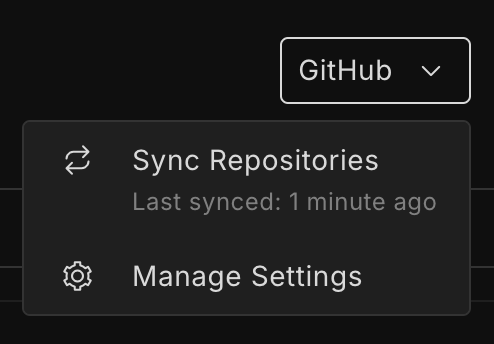
A sync will automatically kick off after you add a sync source. Syncs happen every 5 minutes (if there have been new commits since the last attempted sync). They can be kicked off manually on the **Detections** page or via [API](/scanner/using-scanner-complete-feature-reference/developer-tools/api/github-sync.md).

<figure><img src="/files/OztuC2QU1QwpyaLyNy2I" alt="" width="371"><figcaption><p>Kick off a GitHub sync</p></figcaption></figure>

### 4. Check the status of your sync

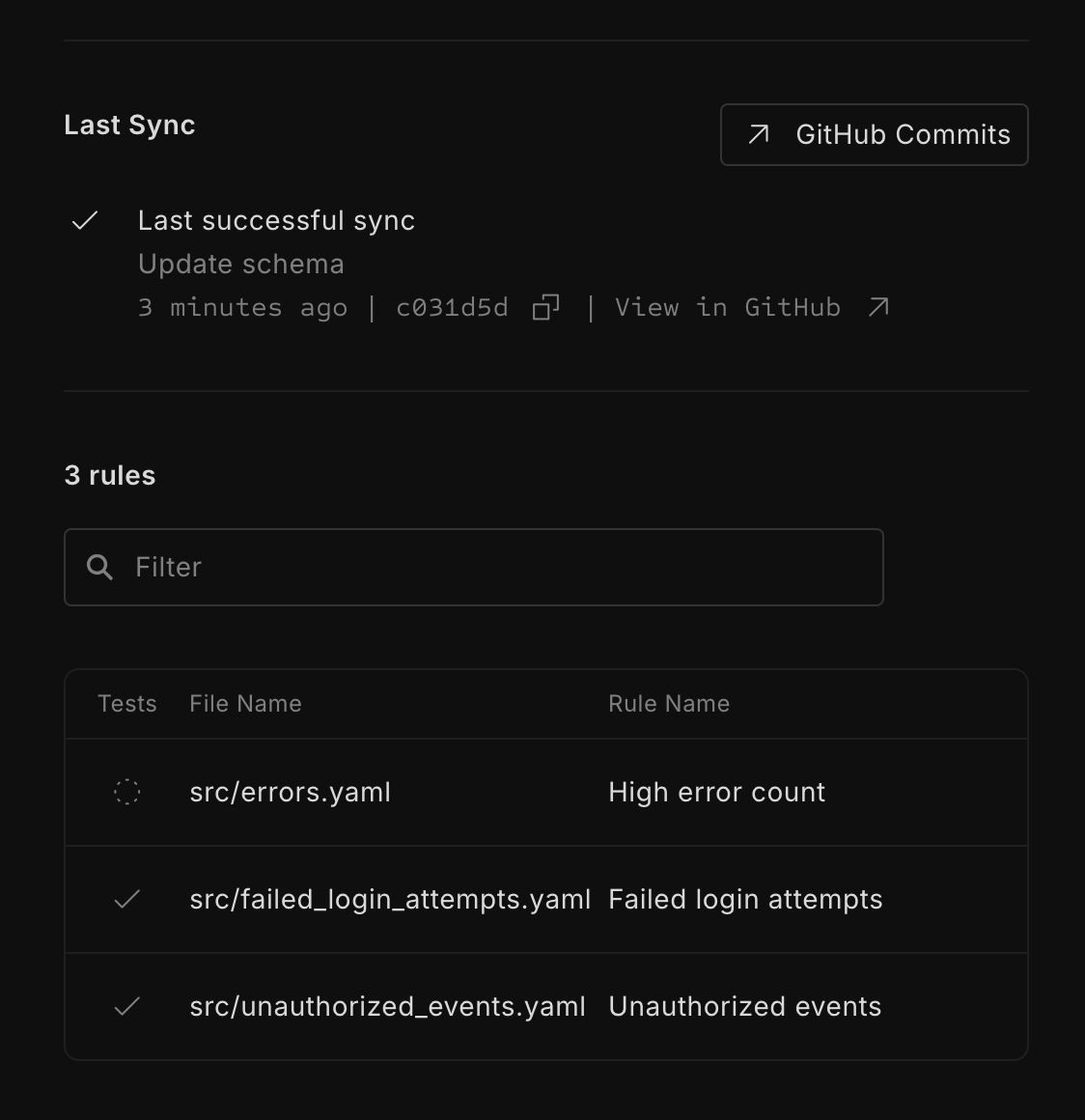
Click on the connected repository to check the sync status. On this page, you will see information on the last sync status and the detection rules that were included.

<figure><img src="/files/5F3sq8hsuoi2Wl6qTWjo" alt="" width="563"><figcaption><p>Last sync status and included rules</p></figcaption></figure>

You can also change the branch or update permissions on this page.

If there are no errors or failing tests, the detection rules will be synced and you will see them on the **Detections** page with a GitHub tag.

<figure><img src="/files/Yzha8eD9qSwp0JPR27h0" alt=""><figcaption><p>Synced detection rule</p></figcaption></figure>

If there are any errors or failing tests, the sync does not proceed. You will be able to see which files had errors or failing tests. After fixing the files and checking in the changes, you can wait for a new sync to kickoff or kickoff a sync from the **Detections** page.


---

# Agent Instructions: Querying This Documentation

If you need additional information that is not directly available in this page, you can query the documentation dynamically by asking a question.

Perform an HTTP GET request on the current page URL with the `ask` query parameter:

```
GET https://docs.scanner.dev/scanner/using-scanner-complete-feature-reference/detections-and-alerting/detection-rules/detection-rules-as-code/getting-started.md?ask=<question>
```

The question should be specific, self-contained, and written in natural language.
The response will contain a direct answer to the question and relevant excerpts and sources from the documentation.

Use this mechanism when the answer is not explicitly present in the current page, you need clarification or additional context, or you want to retrieve related documentation sections.