> For the complete documentation index, see [llms.txt](https://docs.scanner.dev/scanner/llms.txt). Markdown versions of documentation pages are available by appending `.md` to page URLs; this page is available as [Markdown](https://docs.scanner.dev/scanner/using-scanner-complete-feature-reference/detections-and-alerting/detection-rules.md).
# Detection Rules
Scanner provides built-in threat detection rules - or you can write your own. These rules run continuously and send you notifications when the rule criteria are met.
## What is a detection rule?
A detection rule is a query that runs continuously on new logs as they arrive in Scanner. When Scanner indexes a new log file in S3, it runs each detection rule query on the data in the file. Behind the scenes, Scanner builds up a cache of query results for each detection rule, and the cached results are split into 1 minute time bins.
> **How it works:** For technical details on how Scanner's detection engine achieves fast, cost-effective detection at scale using time-based rollup trees, see [Detection Rule Engine](/scanner/what-and-why/how-it-works/detection-rule-engine.md).
## What is a detection event?
Whenever a detection rule query yields any hits, a detection event is created. This event is added to the `_detections` index in Scanner, so you can search through all detection events, compute statistical aggregations on them, and more.
You can also configure a detection rule to send the detection event to an Event Sink, allowing you to send notifications to other tools like Slack or Tines.
## Viewing detection rules
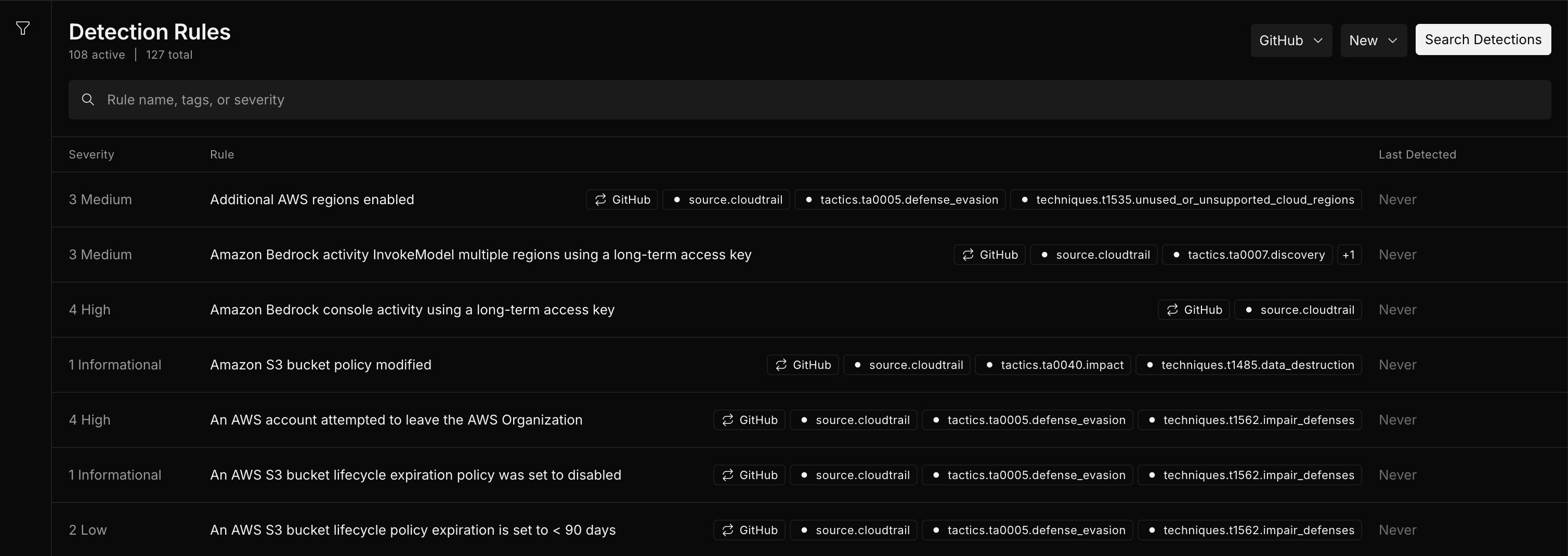
Visit the **Detections** tab in Scanner to view all of your detection rules.
View detection rules
The **Search Detections** button allows you to view all detection events that have been added to the `_detections` index.
You can filter the list of detection rules by state, severity, and tags or search for detection rules by name, tags, or severity. You can also create new detection rules or edit existing rules from this page.
## Creating or editing a detection rule
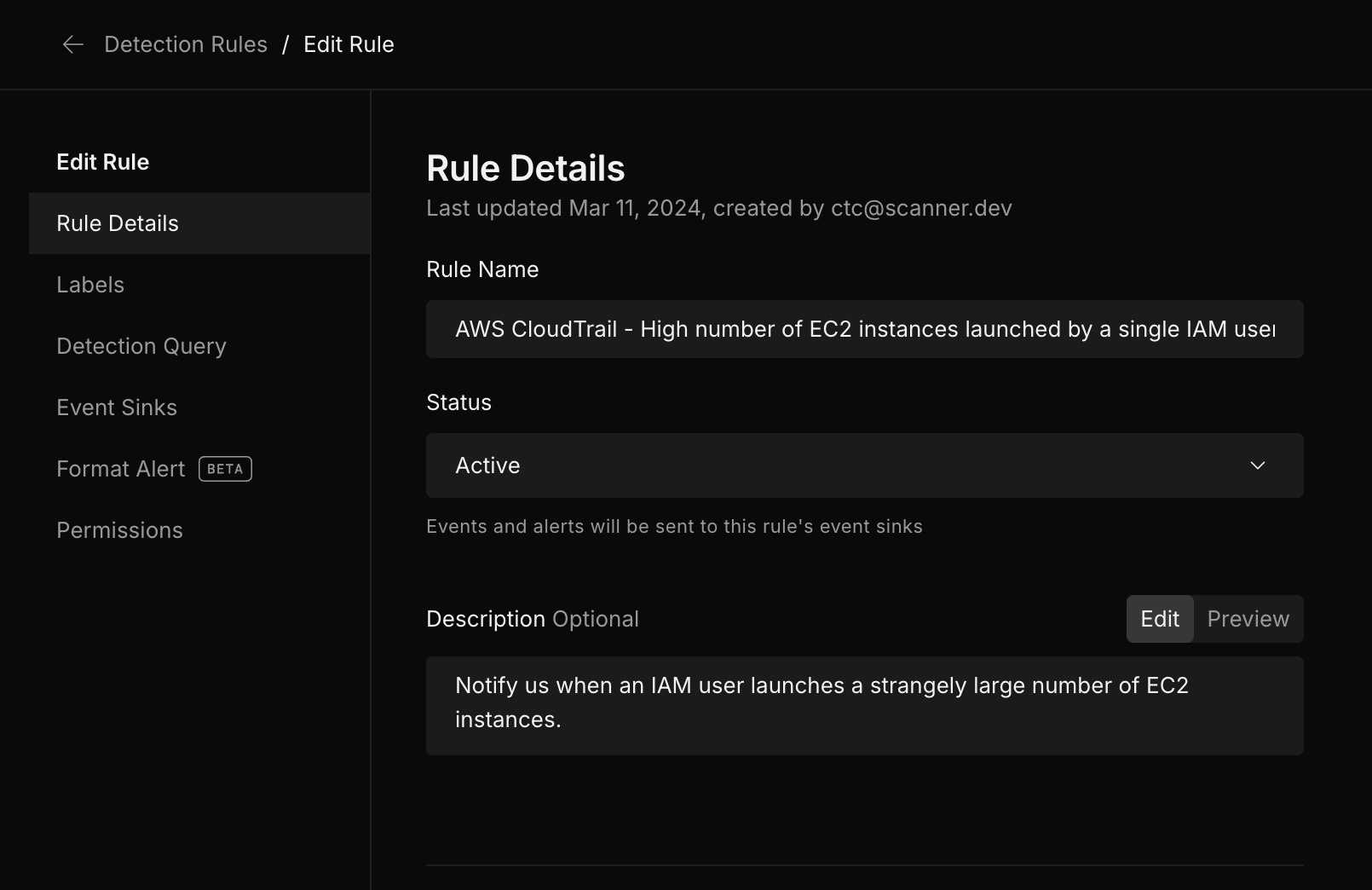
Select **New > Create New Rule** to create a new rule, or select an existing rule to edit it.
You must specify a **Name** for the detection rule, and optionally specify a **Description**.
Edit a detection rule
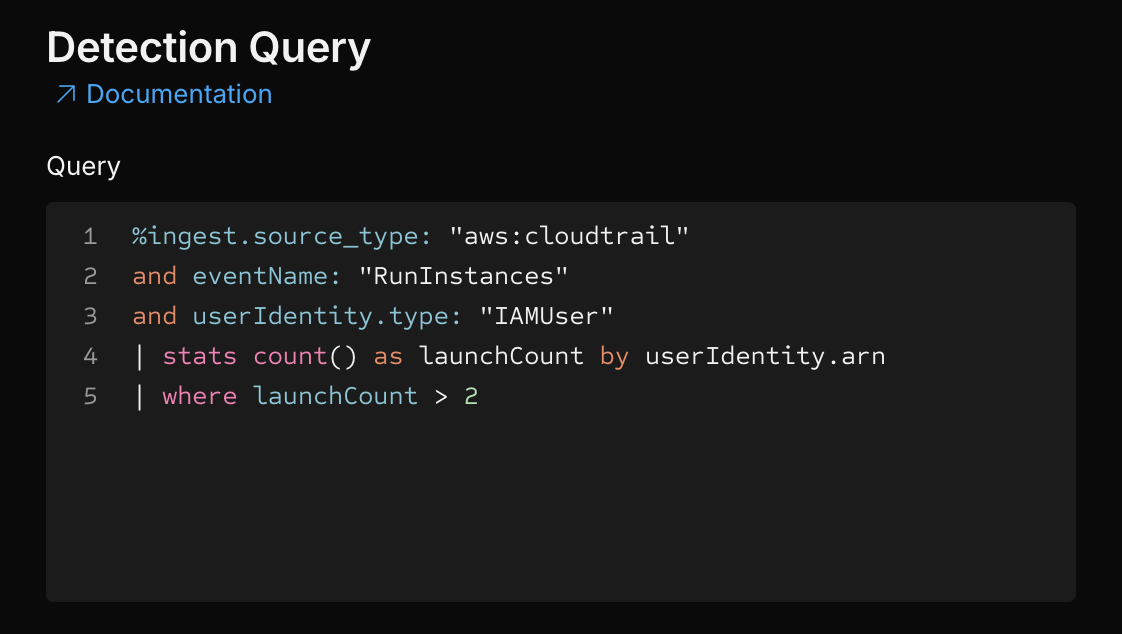
The **Detection** **Query** is the query that runs on all new log files indexed by Scanner. If this query has *any* results, then the detection rule is triggered, and a detection event is created.
Detection query
When a detection rule is triggered, it will always add a detection event to the `_detections` index, which is a special index you can query.
Before creating a detection rule, develop and test your query in the Search interface:
1. **Test in Search first** - Run your query to verify it returns expected results
2. **Refine with aggregations** - Use `stats`, `groupbycount`, and `where` to identify patterns
3. **Shape the output** - Use `rename` to match field names expected by webhooks or external systems
4. **Use `table` for webhooks** - Select only the fields your webhook endpoint needs
5. **Add thresholds** - Use `where` to filter for values above/below thresholds
Once your query works as expected in Search, convert it to a detection rule in the Detections tab as described above.
## Searching through detection events
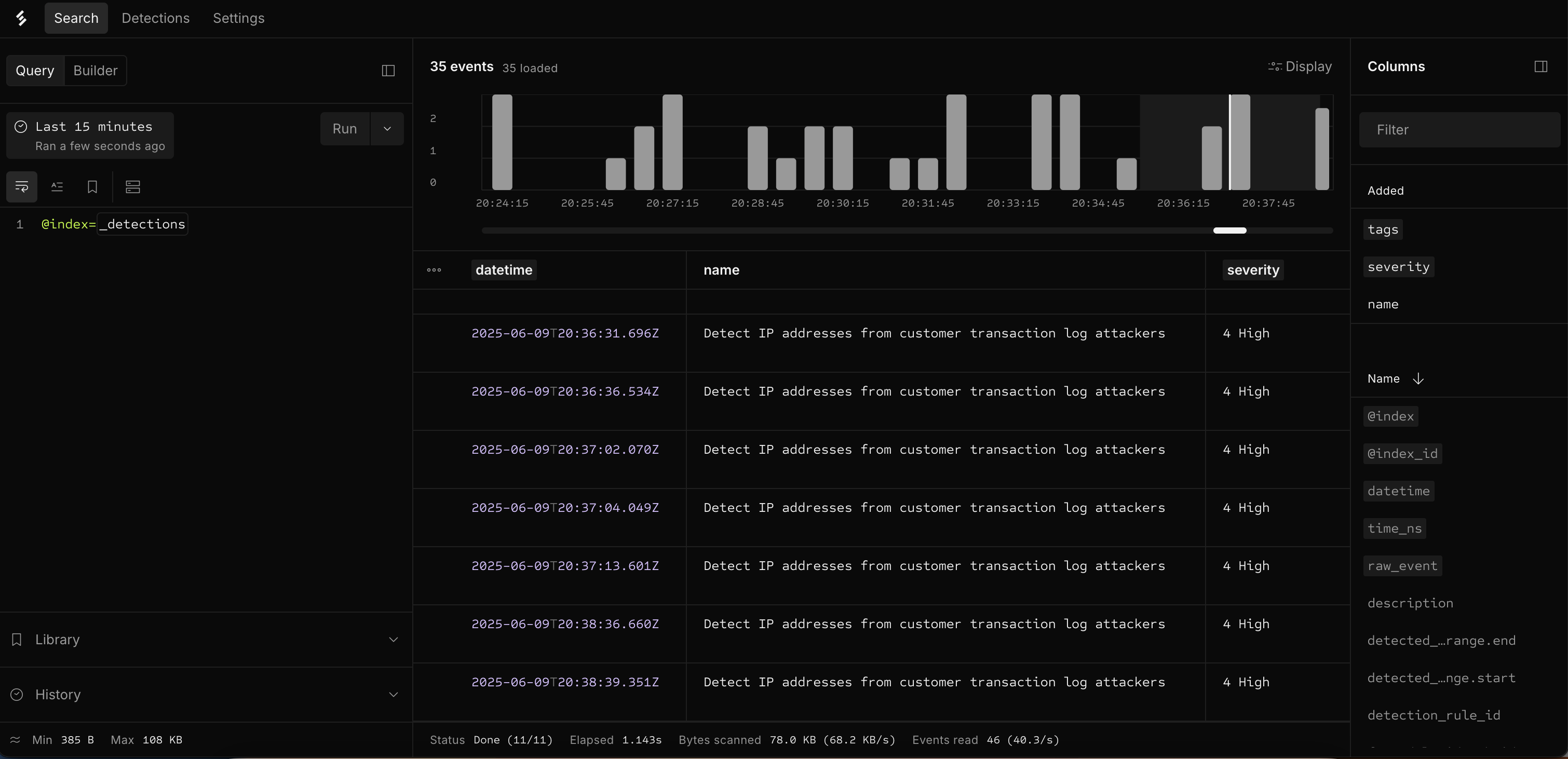
In the main **Detections** tab, you can click **Search Detections** to open up the special `_detections` index and begin querying all past detection events.
You can also query the `_detections` index directly from the **Search** tab by adding `@index=_detections` to your query.
Query the _detections index
The `_detections` index is a special index where all detection events are written. You can query them the same way you query other log events, which allows you to perform powerful investigations.
## Adding tags
Optionally, you can add tags to a detection rule. Tags can be used to classify and search for detection rules. Tags are included in detection events and can be searched in the `_detections`index.
Scanner has default MITRE tags that you can use or you can create your own. See [MITRE Tags](/scanner/using-scanner-complete-feature-reference/detections-and-alerting/detection-rules/mitre-tags.md) for the full list of default tags.
Add tags
## Configuring a detection rule to push to an event sink
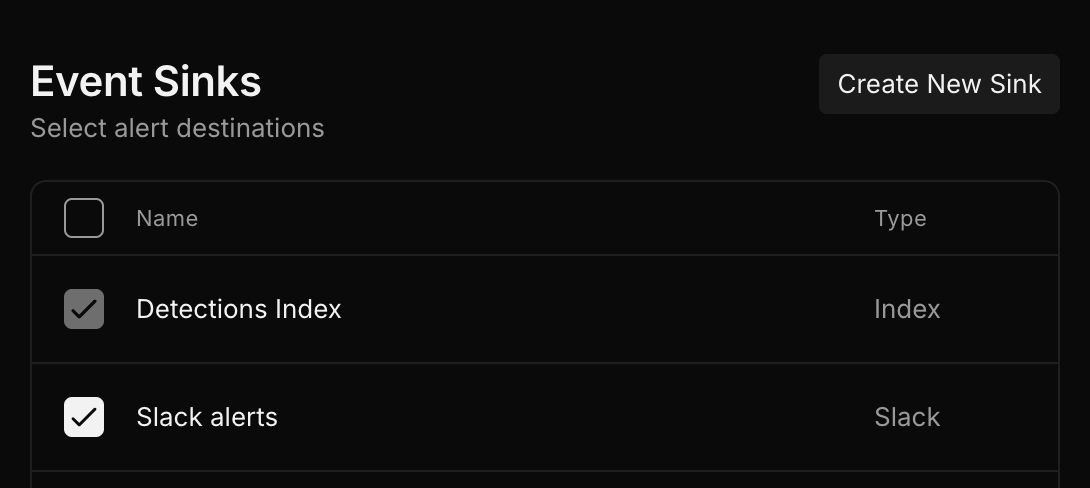
Optionally, you can configure the detection rule to send any triggered detection events to an [Event Sink](/scanner/using-scanner-complete-feature-reference/detections-and-alerting/event-sinks.md). For example, in this screenshot, we configure the detection rule to send events to a Slack event sink.
To set up an event sink, see [Event Sinks](/scanner/using-scanner-complete-feature-reference/developer-tools/api/event-sinks.md#create-a-new-event-sink).
Configure detection rule to send events to an event sink
## Detection rule states
Detection rules can be set to one of three states: **Active**, **Staging**, or **Paused**.
### Active
The **Active** state is the standard state for detection rules. Active detection rules run, create detection events in the `_detections` index, and send detection events to configured event sinks. Generally, most of your detection rules should be in this state.
### Staging
The **Staging** state is used for validating detection rules without generating alerts. Staging detection rules run and create detection events in the `_detections` index, but do *not* send events to event sinks. This state is useful for rules that are under consideration but may need further tuning: you can leave them in the staging state for a week or two and then review the detection events they've created in the `_detections` index to see if they're behaving as expected.
### Paused
The **Paused** state is used to deactivate detection rules without deleting them. Paused detection rules do not run. They do not create detection events in the `_detections` index or send events to event sinks. This can be useful for rules that are temporarily misbehaving or outdated rules that you want to keep around as a reference.
## Alert grouping
When a detection rule's query returns multiple rows, you can choose how those rows are turned into alerts. This is configured by the **Alert Grouping** dropdown in the detection rule editor.
* **Send one alert** (default) — All matching results are combined into a single alert containing the (truncated) results table. Appropriate when the rows together describe a single finding (for example, a `stats ... by user` aggregation where the alert is about the user, not each row).
* **Send multiple alerts** — Send one alert per row of the results table. This is appropriate when each row represents an independent finding that should be triaged, deduplicated, or routed on its own (for example, one alert per failing host). It may generate a high volume of alerts, so pair it with [deduplication](#deduplicating-detection-events) when needed.
## Deduplicating detection events
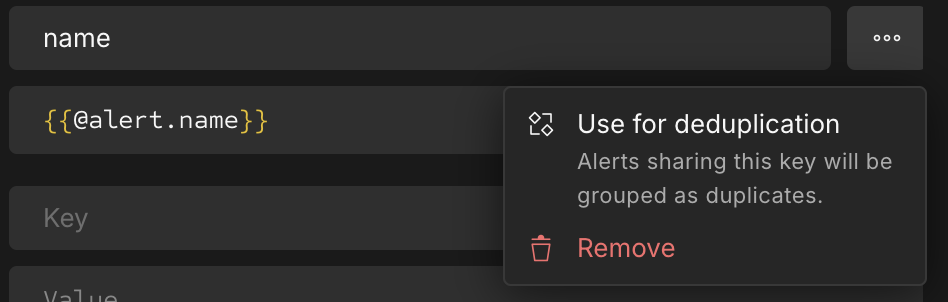
Deduplication for detection events can be activated by setting the `Use for deduplication` checkbox under the `...` menu in the **Format Alert** section:
Enable use for deduplication
Then, once you've set one or more fields to be deduplication keys, Scanner will deduplicate detection events that have the same values for those fields. E.g. if you have a detection rule that detects failed login attempts, you can set the `email` field to be used for deduplication; then, Scanner will send at most one detection event per `email` value per deduplication time window.
By default, the deduplication time window is set to the time range of the detection rule. However, it can be separately-configured in the **Deduplication Window** field in the **Format Alert** section.
---
# Agent Instructions
This documentation is published with GitBook. GitBook is the documentation platform designed so that both humans and AI agents can read, navigate, and reason over technical content effectively. Learn more at gitbook.com.
## Querying This Documentation
If you need additional information that is not directly available in this page, you can query the documentation by asking a question.
Perform an HTTP GET request on the following URL with the `ask` and `goal` query parameters:
```
GET https://docs.scanner.dev/scanner/using-scanner-complete-feature-reference/detections-and-alerting/detection-rules.md?ask=&goal=
```
`ask` is the immediate question: it should be specific, self-contained, and written in natural language.
`goal` is what the user is ultimately trying to achieve, the reason they need the answer. Sharing it helps GitBook give you a better, more relevant answer. A goal is most helpful when it describes the outcome the user wants rather than restating the question. For example, with `ask=how do I create an API token`, a goal like `automate deployments from our CI pipeline` lets GitBook tailor the answer to that use case.
The response will contain a direct answer to the question and relevant excerpts and sources from the documentation.
Use this mechanism when the answer is not explicitly present in the current page, you need clarification or additional context, or you want to retrieve related documentation sections.